



Knowledge Base
Highlighter
The Highlighter tool allows you to mark key text passages within chapters or modules for easy reference. You can color-code your notes using a variety of options, attach personal comments to specific highlights, and generate unique links to share your annotations with others.

Accessing the Highlighter
1. Navigate to a Chapter or Module page
2. Locate the Highlighter button in the top navigation bar.
3. Clicking on the button will reveal the tool and a Highlighter icon will appear in the top-right corner of your screen alongside the color palette.
Note: The floating Highlighter icon is draggable, allowing you to move it to any preferred spot on your screen
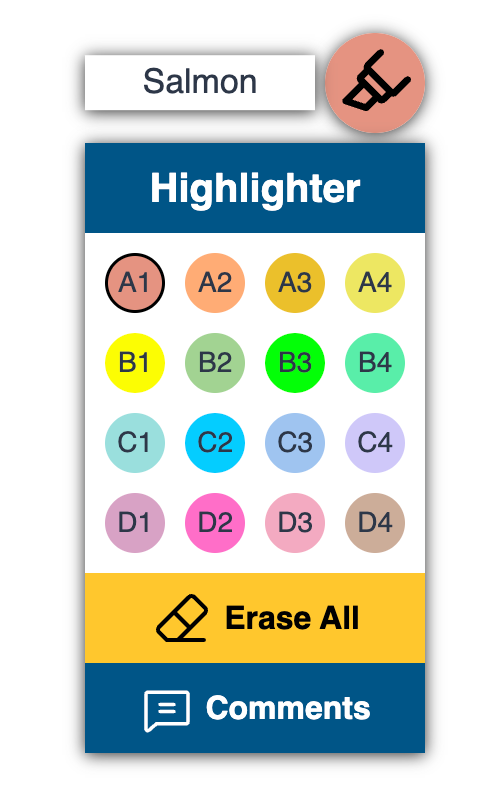
To highlight text:
1. Select one of the 16 available colors to customize your marking (These colors are coded and named for ease of reference)
2. Click and drag your cursor over the text you wish to highlight.
For mobile users: press and hold the text for highlighting
Note: The Erase All button located below the color palette erases ALL highlights and comments made for the specific page.
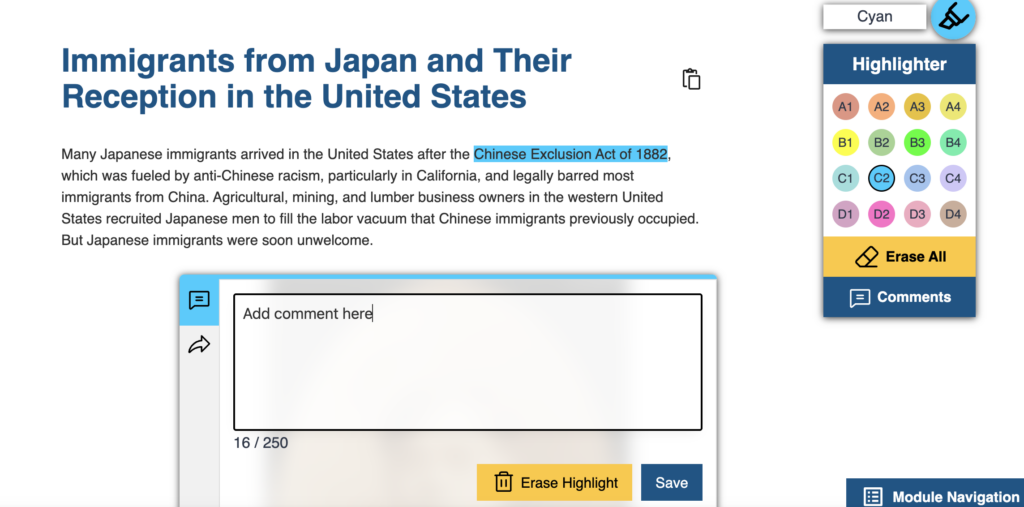
Adding Comments / Sharing Highlights
1. Click/tap on the highlighted text to reveal the comment box, where you can add a comment up to 250 characters.
2. Upon adding a comment, click on the save button to save your comment.
3. You are able to erase the specific highlighted text and any comment attached to it with the Erase Highlight button.
4. To share the highlights and comments you created, click on the share icon below the comment icon to automatically generate and copy a link to use.